OpenStudio AI installation

Choose the installation path that fits how you work.

Use the terminal for scripted or repository-local setup, or install directly from the standalone desktop clients. Both paths add the same OpenStudio AI plugin.

Option 1

Terminal-based installation

Use the marketplace commands when you want repeatable setup from a shell.

Claude Code

Add the marketplace, install the plugin, then reload it in the session.

1

Add the marketplace

claude plugin marketplace add https://github.com/pnnl/openstudio-ai-plugins.git
2

Install the plugin

claude plugin install openstudio-ai@openstudio-ai-local
3

Reload and run setup

/reload-plugins
/openstudio-ai:setup-openstudio-ai
4

Update the plugin

Refresh the marketplace to retrieve the latest OpenStudio AI release, then reload plugins in an active session.

claude plugin marketplace update openstudio-ai-local
/reload-plugins
Codex

Add the marketplace, install the plugin, then run setup in a task.

1

Add the marketplace

codex plugin marketplace add https://github.com/pnnl/openstudio-ai-plugins.git
2

Install the plugin

codex plugin add openstudio-ai@openstudio-ai-local
3

Run setup in a task

/setup-openstudio-ai
4

Update the plugin

Refresh the marketplace to retrieve the latest OpenStudio AI release, then start a new task or reopen Codex.

codex plugin marketplace upgrade openstudio-ai-local

For project-wide Codex policy setup and local-folder installation, see the repository’s Codex instructions. For Claude Code scopes and validation, see the Claude Code instructions.

Option 2

Desktop-client installation

Add the marketplace through the application UI, then install OpenStudio AI. The equivalent steps are arranged side by side so you can follow the client you use.

Claude Code Desktop

Open the Plugins directory to add and install OpenStudio AI.

1

Add the marketplace

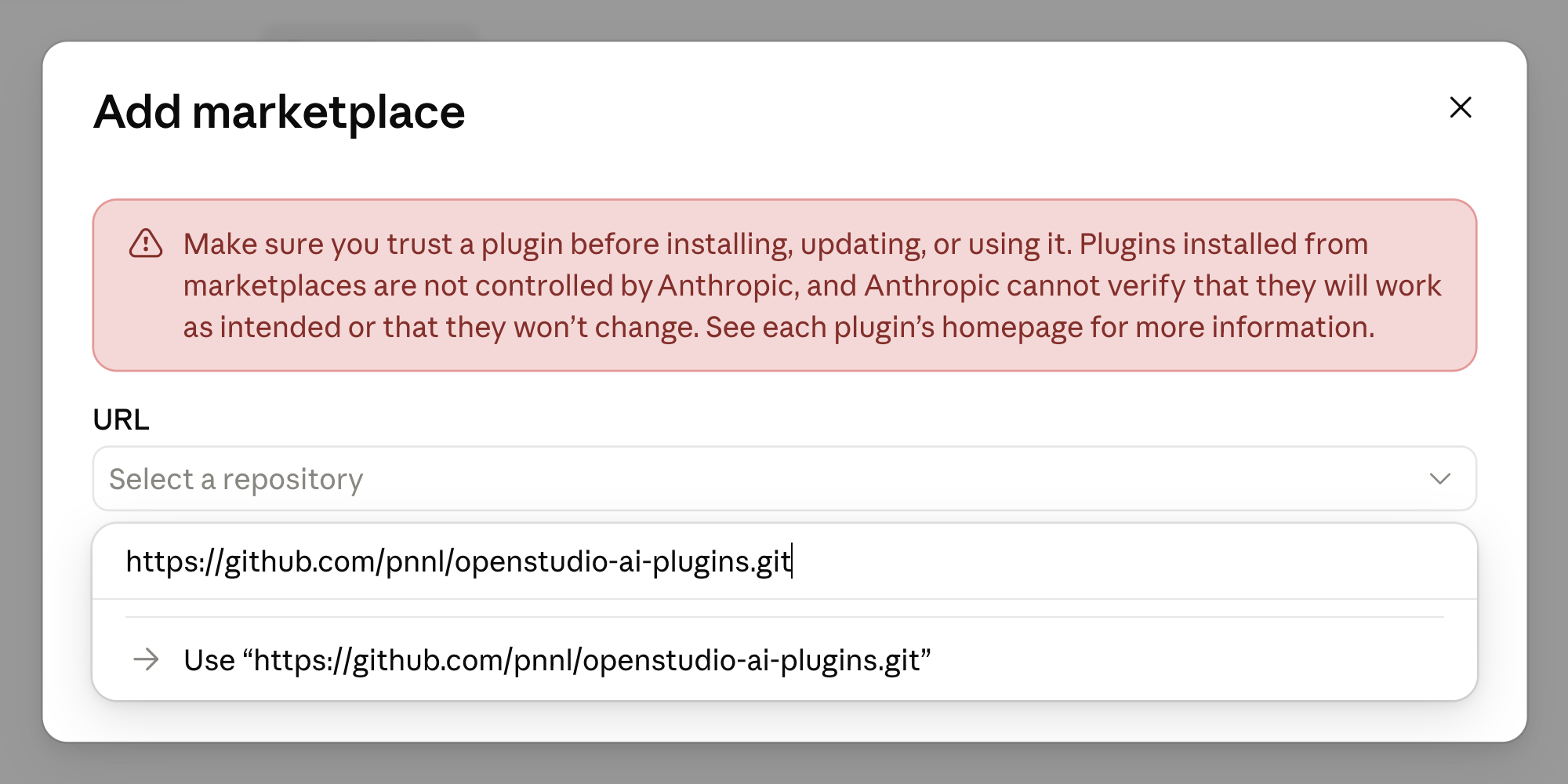
Open Customize → Plugins → Browse, then click the + button. Paste the repository URL in the Add marketplace window and select the suggested Use option.

https://github.com/pnnl/openstudio-ai-plugins.git
Claude Code Add marketplace dialog with the OpenStudio AI Plugins GitHub URL entered
Paste the repository URL into Add marketplace.
2

Install OpenStudio AI

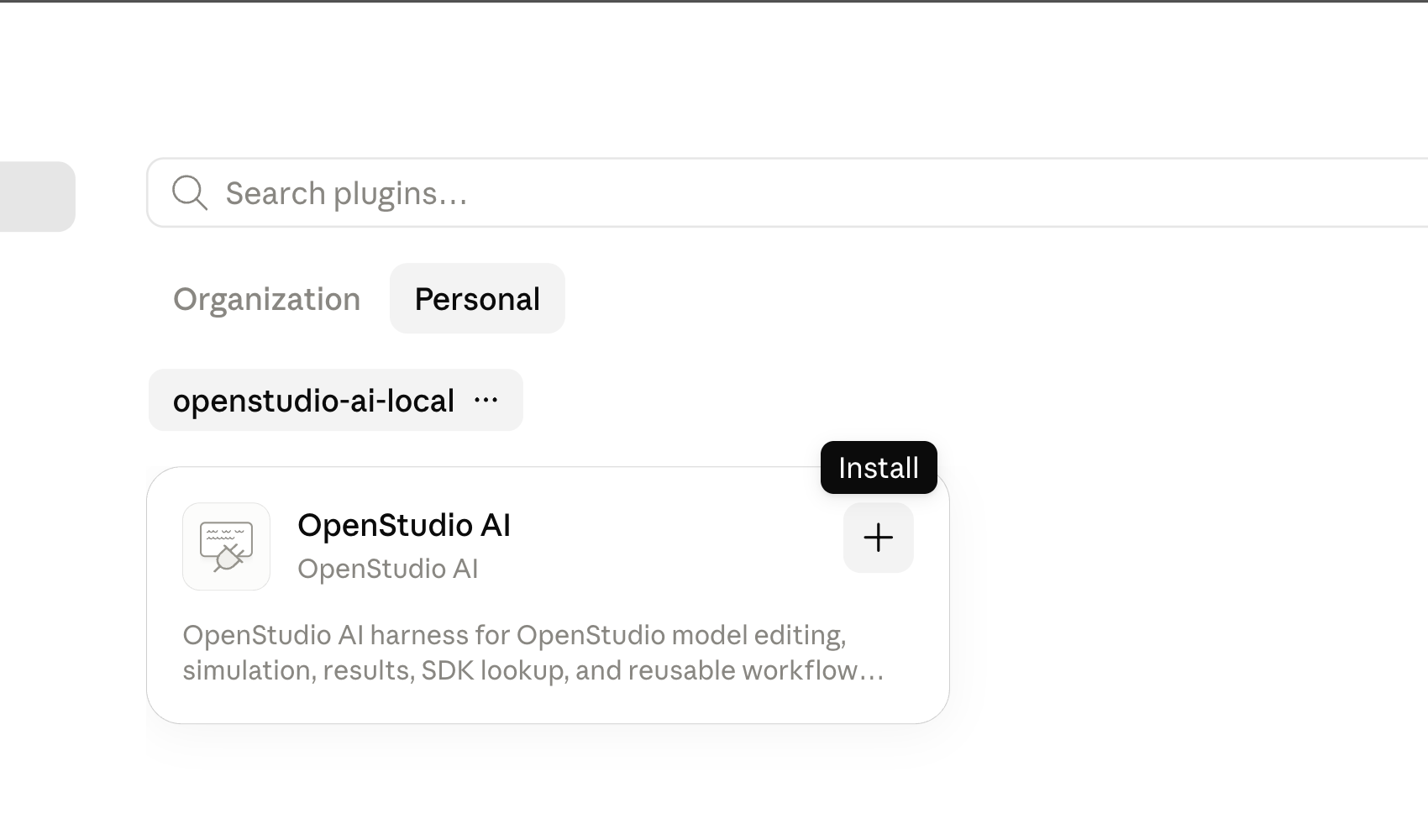
Select openstudio-ai-local, then click + beside OpenStudio AI.

Claude Code plugin directory showing the OpenStudio AI install button
Install from the Personal marketplace list.
3

Run setup

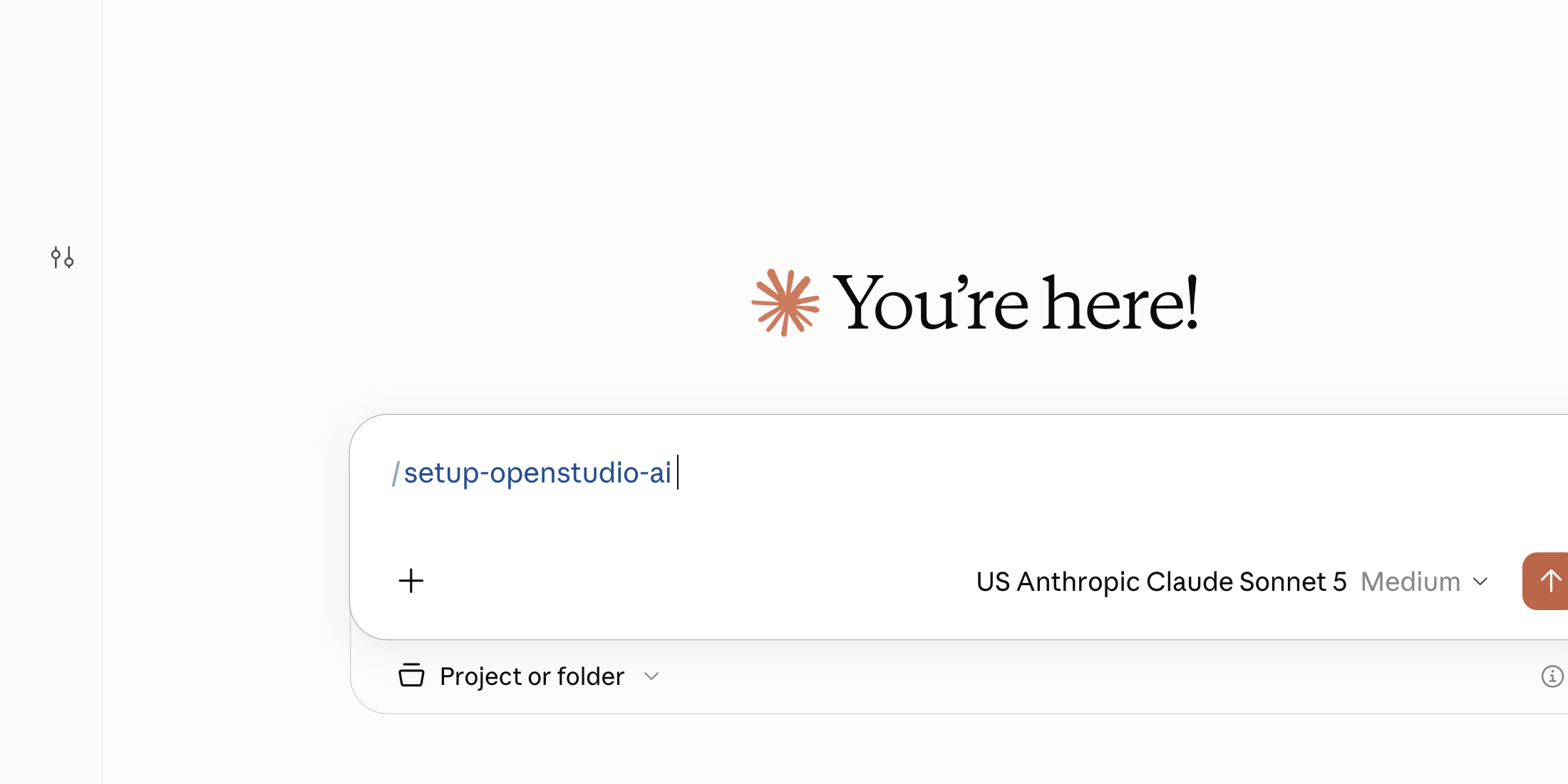
Start a session for your project, type /setup-openstudio-ai, and select the setup skill.

Claude Desktop with setup-openstudio-ai typed into a project session
Run setup once for the project environment.

Codex Desktop

Open Customize, then Plugins, to add and install OpenStudio AI.

1

Add the marketplace

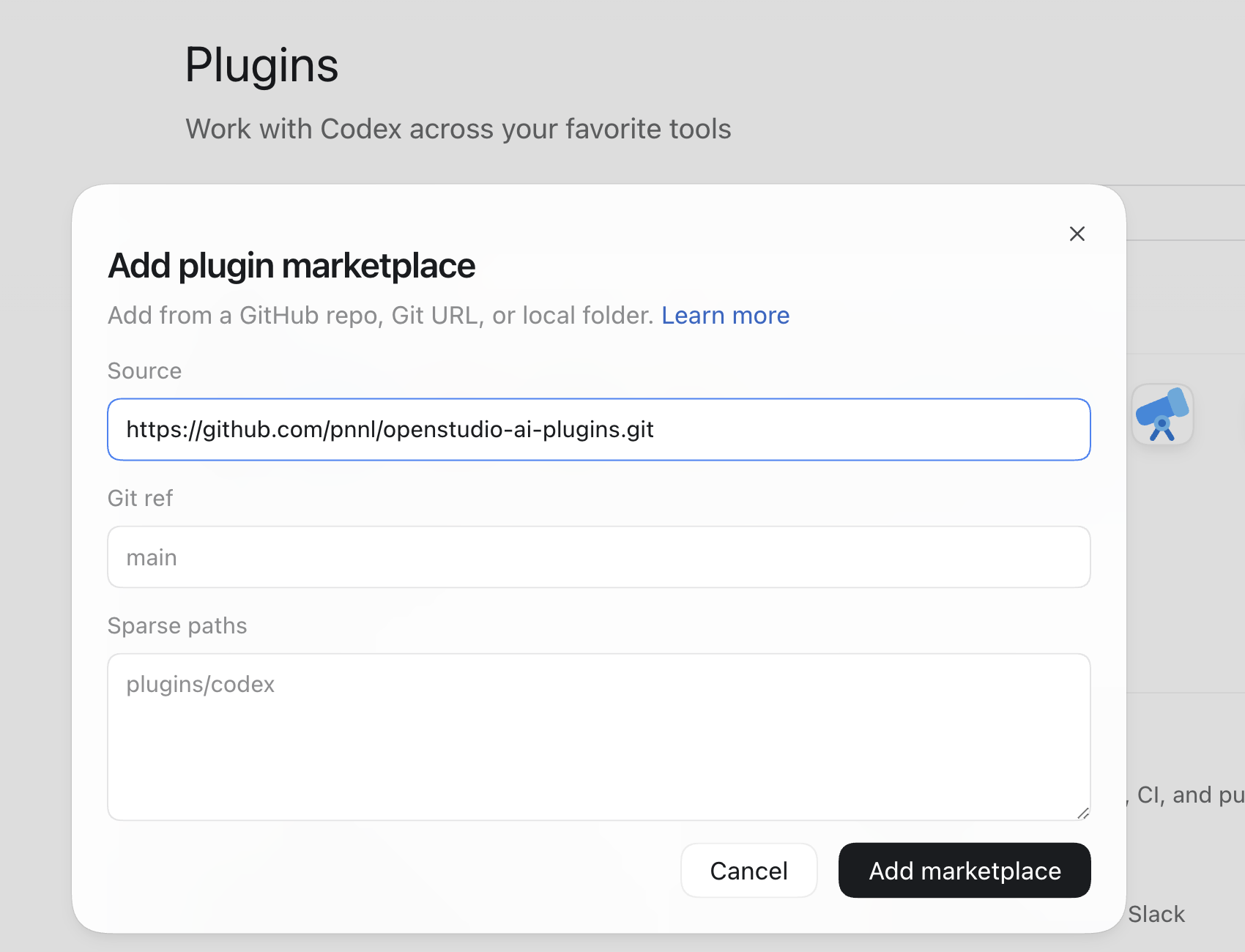
Open Plugins, click the Add dropdown, then select + Add marketplace. Paste the source and select Add marketplace.

https://github.com/pnnl/openstudio-ai-plugins.git
Codex Add plugin marketplace dialog with the OpenStudio AI Plugins GitHub URL entered
Add the repository as a Codex marketplace.
2

Install OpenStudio AI

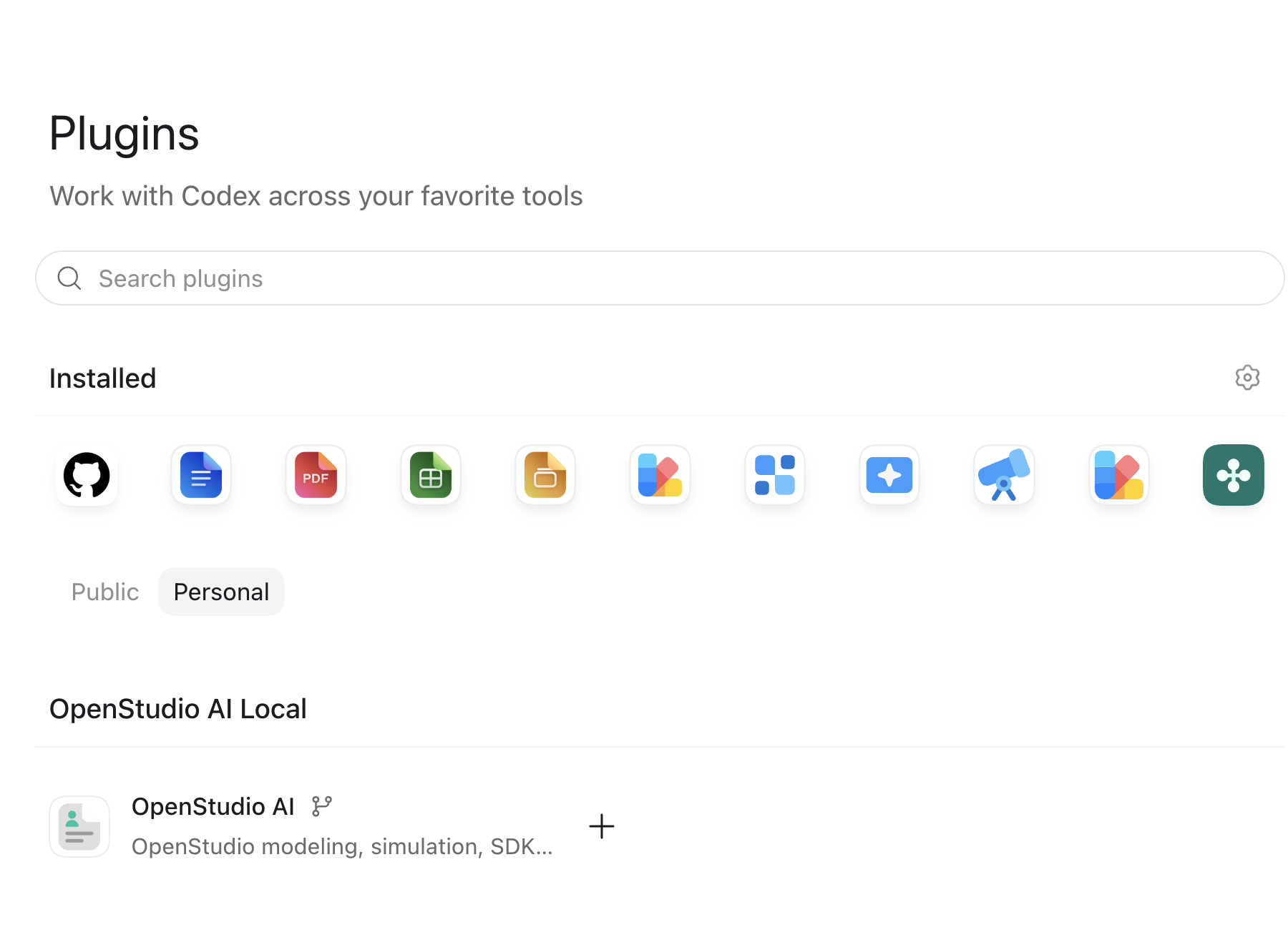
Under Personal → OpenStudio AI Local, click + beside OpenStudio AI.

Codex Plugins page showing OpenStudio AI Local and the OpenStudio AI install button
Install from the Personal marketplace.
3

Run setup in a task

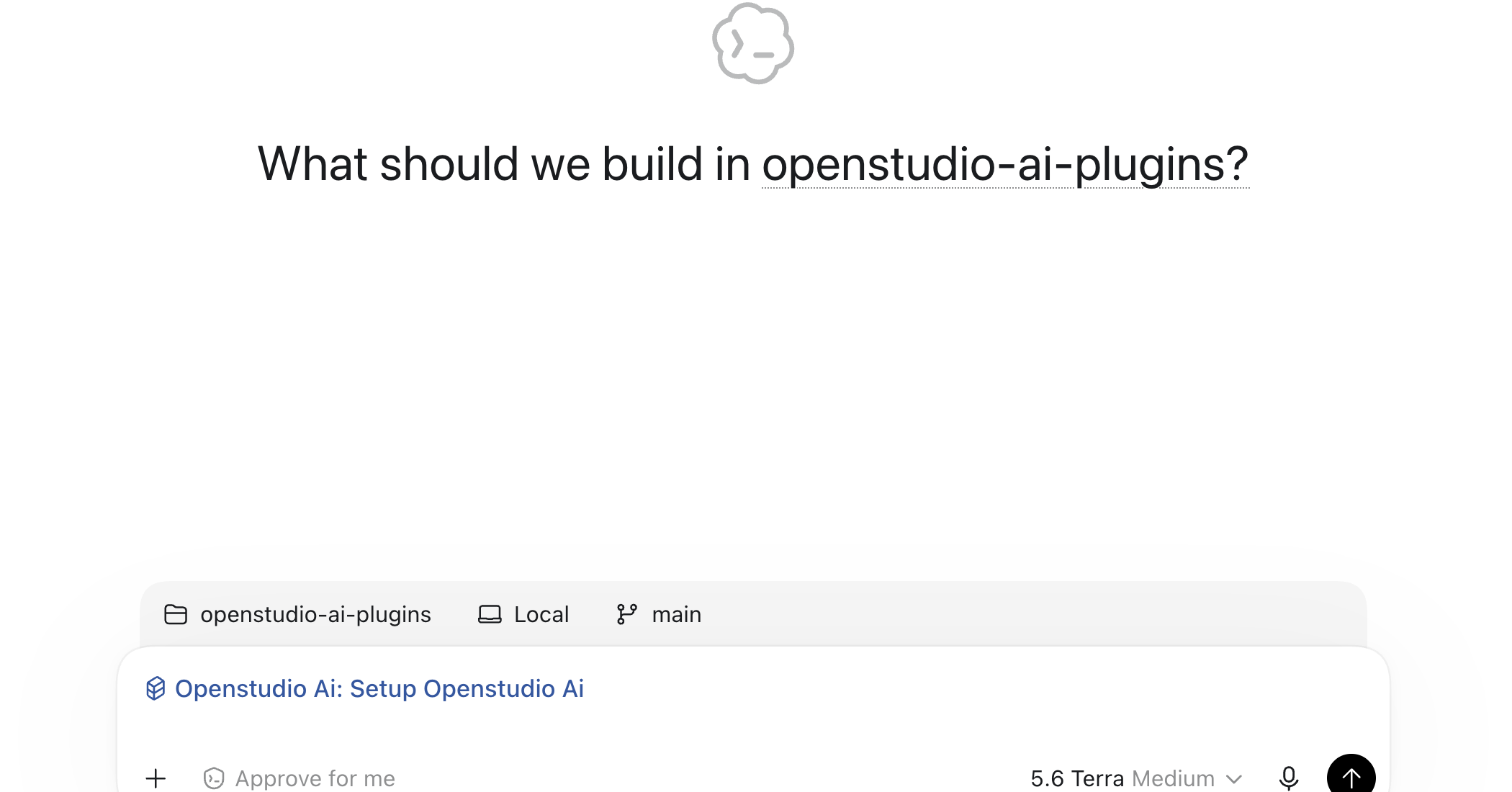
Open a project task, type /setup-openstudio-ai, and choose OpenStudio AI: Setup OpenStudio AI.

Codex task showing the OpenStudio AI Setup OpenStudio AI skill suggestion
Start the setup skill in the project where you will model.
Keep OpenStudio AI current

Update a desktop plugin

When a newer OpenStudio AI version is available, follow the update steps for the desktop client you use.

Claude Code Desktop

First refresh the marketplace, then update the installed OpenStudio AI plugin.

1

Check the marketplace for updates

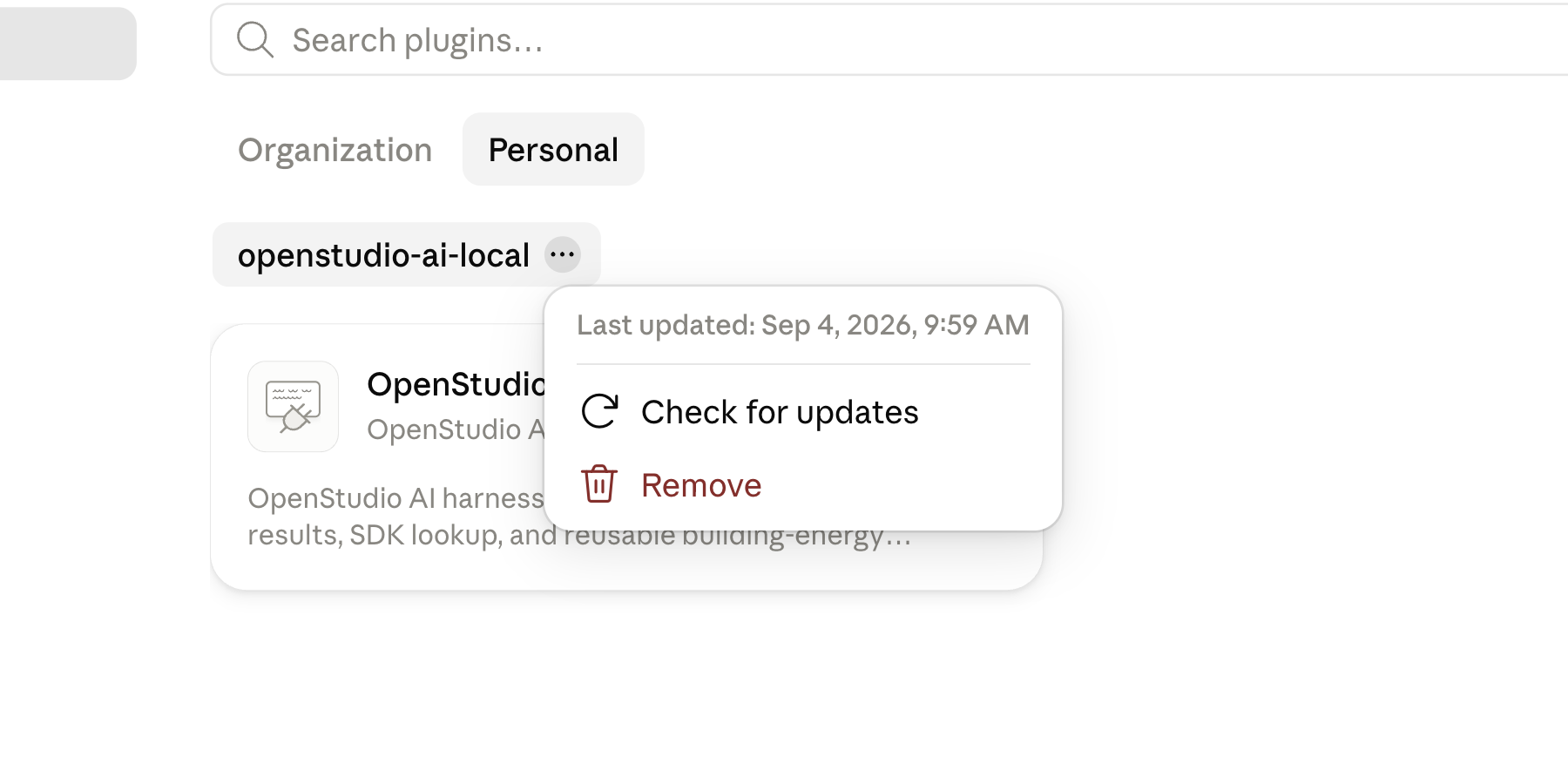
Open Manage plugins → Browse → Personal. Open the openstudio-ai-local menu and select Check for updates.

Claude Code Personal marketplace with the openstudio-ai-local menu and Check for updates option
Refresh the Personal marketplace first.
2

Update the installed plugin

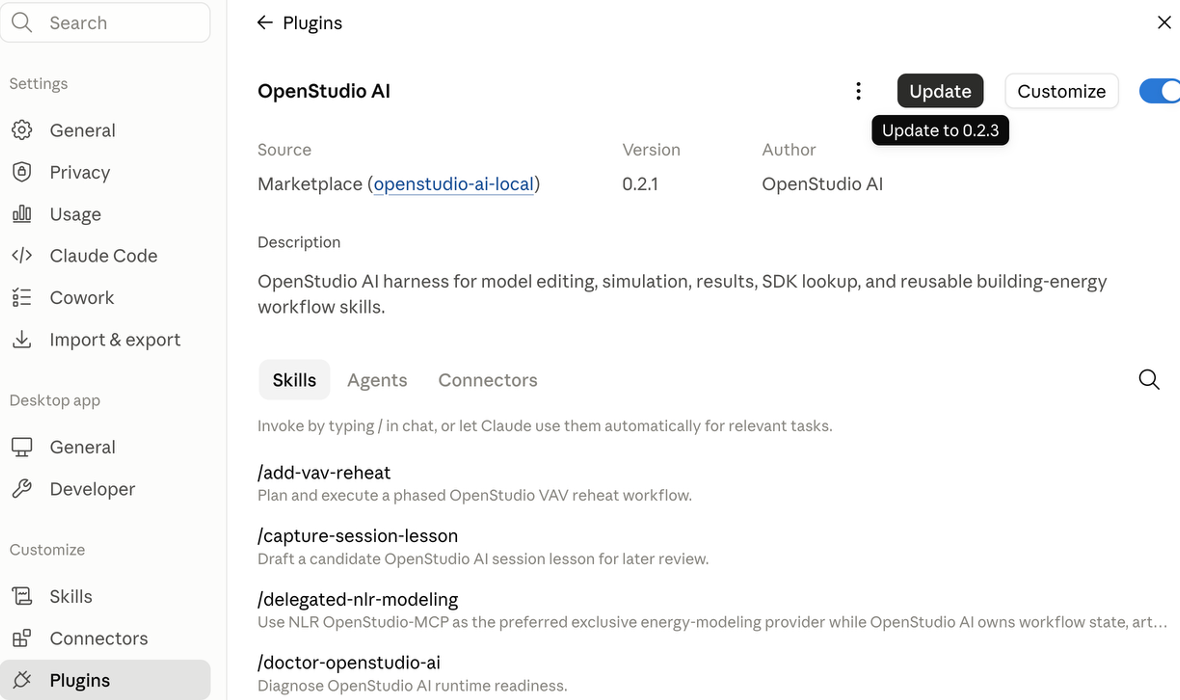
Return to the OpenStudio AI plugin page and click Update.

Claude Code OpenStudio AI plugin page with the Update button available
Apply the available update to the installed plugin.

Codex Desktop

Updating the marketplace also updates the locally installed OpenStudio AI plugin.

1

Upgrade the marketplace

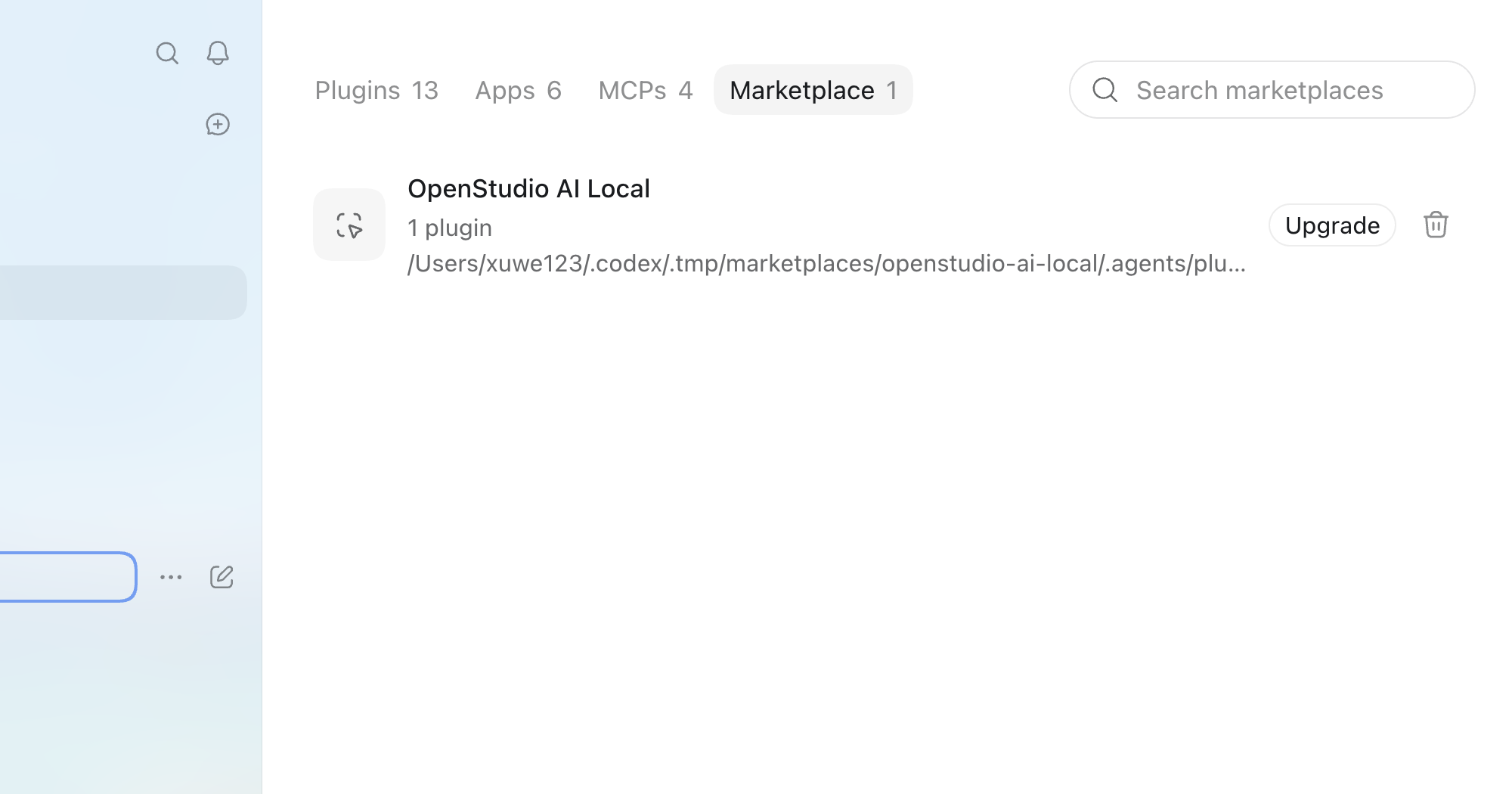
Open Plugins, select the Marketplace tab, then click Upgrade for OpenStudio AI Local. No separate local-plugin update is needed.

Codex Marketplace tab showing OpenStudio AI Local and the Upgrade button
Codex updates the installed plugin automatically.

The setup skill checks your local runtime and explains any missing requirements before you begin modeling.

Optional terminal step

Add OpenStudio-MCP

OpenStudio AI works with the plugin alone. Add OpenStudio-MCP when your workflow needs its local, containerized OpenStudio capabilities.

Docker-based provider

Prepare the local OpenStudio-MCP runtime

Install and start Docker Desktop first, then download the OpenStudio-MCP image. The provider setup guide covers the final client configuration and required Docker mounts.

macOS with Homebrew

Install Docker Desktop and confirm that it is running.

brew install --cask docker
open -a Docker
docker version

Windows PowerShell

Install Docker Desktop and confirm that Docker is available.

winget install -e --id Docker.DockerDesktop
docker version